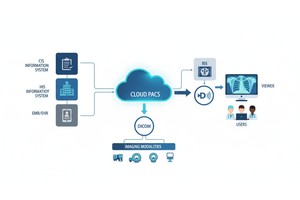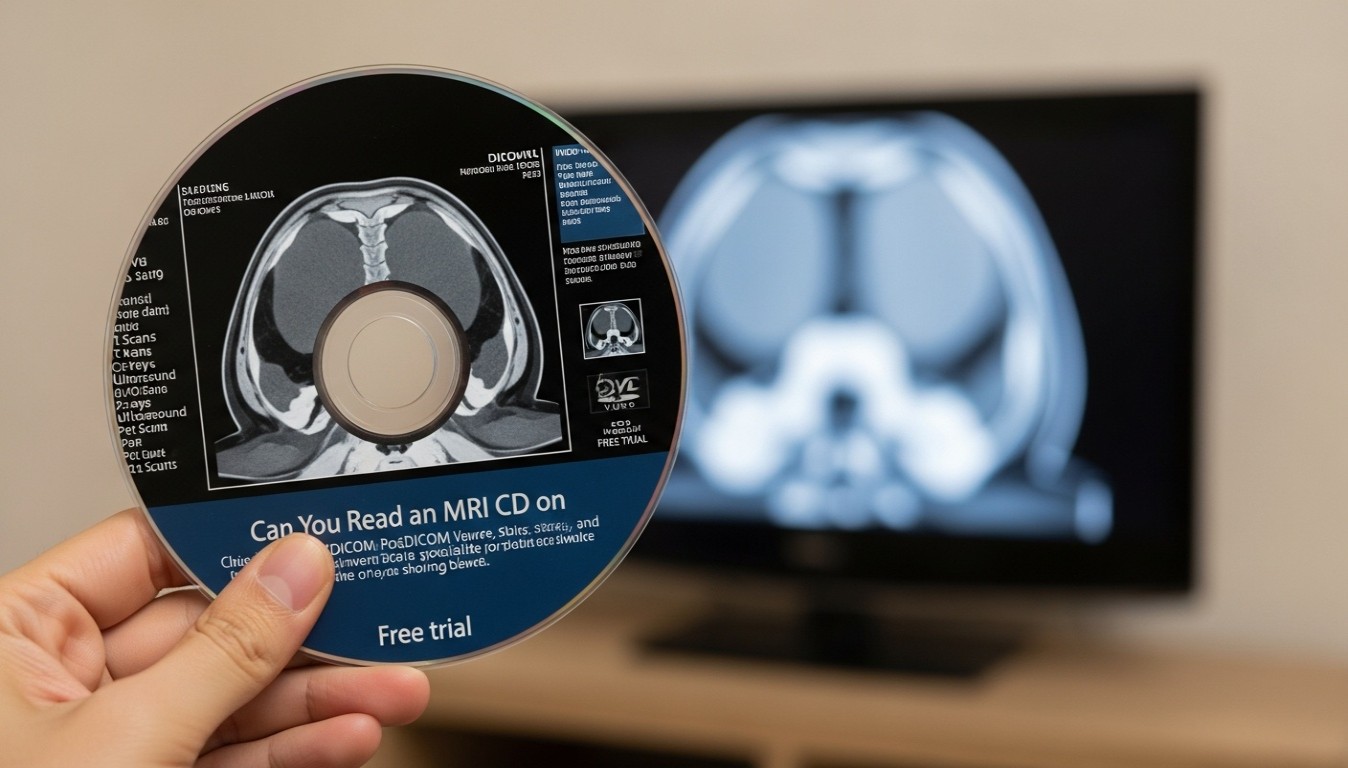
You've just finished an MRI appointment, and the imaging center provided you with a CD or DVD that contains your MRI scan images. Naturally, you may think you can insert it into your home DVD player and view the images on your TV.
However, if you attempt it, then nothing plays.
It can be tricky, particularly because the disc resembles a standard CD/DVD. However, an MRI disc is not created like a movie DVD. It typically includes medical image files in a format known as DICOM, which must be viewed using a special medical image viewer software.
Many of the patients wish to know how they can open an MRI CD, how they can view an MRI scan CD, or how they can get the right MRI CD viewers for their images.
No. Most of the time, you can't use an MRI CD or DVD with a standard home DVD player.
An MRI disc usually contains DICOM medical imaging files, not video files. A DVD player is not designed to play medical image data. The MRI scans are presented in the form of multiple files (DICOMs), which must be opened on a computer using a DICOM viewer or uploaded to a secure cloud-based DICOM viewer like PostDICOM.
If the disc fits into your DVD player, the player will not recognize the files on it. That's why people who are looking for an MRI CD on a computer, viewing MRI CD, or opening an MRI CD generally require a DICOM viewer rather than a DVD player.
What Is Actually on an MRI CD?
The image information from your MRI is typically stored on an MRI CD. These images are usually saved in DICOM (Digital Imaging and Communications in Medicine) format.
Medical imaging files are standardized in the DICOM format. It is utilized for various kinds of scans, such as:
• Mri Scans
• Ct Scans
• X-rays
• Ultrasound Images
• Pet Scans
DICOM files are different from normal image files like JPEG or PNG. These can contain medical images, scan details, patient information, imaging settings, and other technical data necessary for healthcare professionals to access.
A simple DICOM viewer is often provided with a lot of MRI CDs. It's a tiny piece of software which can enable you to view the images on a compatible computer. Depending on the viewer, zoom-in, scroll through image slices, rotate images, and perform basic measurements.
But this viewer will not work on a standard DVD player. Requires a computer operating system, like Windows or Mac.
A home DVD is constructed for amusement media. Searches for video files, menus, chapters and instructions for playback in DVD-video format.
This is not an MRI disc. Typically includes medical imaging data and, sometimes, viewer software. A DVD player is incapable of:
• Open Dicom Files
• Run Dicom Viewer Software
• Browse Medical Image Folders Properly
• Display Mri Slices As A Diagnostic Study
• Read The Technical Information Stored Inside Dicom Files
As such, although the disc is identical in appearance to a CD/DVD, its content is quite unique.
Imagine that the disc is just a way to store it. The important thing is the file format on the disc. Movie DVDs can be played by a DVD player, but a DVD player cannot be used as medical imaging software or as an MRI CD viewer.
But this isn't as confusing as it sounds – after all, CDs and DVDs are almost identical. Both are circular optical disks, both can hold digital information, and both can be placed in a computer disc drive.
They are not the same, however, with regard to size of storage and general usage.
| Feature | CD | DVD |
| Typical capacity | Around 700 MB | Around 4.7 GB for a single-layer DVD |
| Common use | Audio, documents, small software, medical image files | Movies, larger software, larger datasets |
| Can it fit into a DVD drive? | Usually yes | Yes |
| Can it play in a home DVD player? | Only if it contains compatible media | Only if it is formatted as DVD-video |
| Can it store DICOM medical images? | Yes | Yes |
CDs are used at some imaging centres because there are many scan studies that can be accommodated and this is a cost effective method. Some larger studies might be available on DVD, USB flash drive or via online portals.
The main thing is that your MRI pictures are stored on a CD, DVD, or USB drive, but the important thing is that your MRI images require a DICOM viewer.
Use one of the following to view your MRI CD.
If you have a CD/DVD drive in your computer, insert the disc and open it with File Explorer (Windows) or Finder (Mac).
When attempting to open an MRI CD on a computer, this is typically the first step you need to take to see if it has an inbuilt viewer.
Check for files or folders that could contain:
• A Dicom Folder
• A File Named Dicomdir
• A Viewer Application
• A Readme File
• An Executable File (usually Named Startviewer.exe, Viewer.exe, Or Something Similar)
The viewer might open automatically on some Windows computers. If it doesn't, you might have to open the disc up and search for the viewer file.
Some disc viewers that were created for Windows may not be compatible with Mac computers. If so, you will require a different DICOM viewer or a cloud-based viewer.
If the disc has not been provided with a viewer, you can use a DICOM viewer to open the scan.
A DICOM viewer is software used to view medical imaging studies. Can typically load the entire scan series, rather than one image at a time. This Medical Image Viewer is the right tool for opening DICOM files from an MRI CD.
While viewing, you may be able to:
• Scroll Through Mri Slices
• Zoom In And Out
• Adjust Brightness And Contrast
• Compare Image Series
• Take Measurements
• Export Selected Images
It is best to load the entire study folder rather than to open each file individually. This aids the viewer in maintaining an orderly sequence of the scan series.
A cloud-based DICOM viewer allows you to upload and access your medical images from the web. This can come in handy when:
• Your Computer Does Not Have A Disc Drive
• The Built-in Viewer Does Not Work
• You Do Not Want To Install Software
• You Need To Share The Scan With A Doctor Or Specialist
• You Want Access To Your Images From Different Devices
• You Want To View Mri Images Online
With PostDICOM users can upload, store, view and share DICOM images online. You don't need to rely on the physical MRI disc, but you can store the scan in a safe cloud environment and access it from your browser.
This is particularly useful for patients who require their images to be sent to another physician, may need a second opinion, or maintain a digital file of their medical imaging history.
This is because many modern laptops, tablets, and desktop computers lack CD or DVD drives. There are several options if your device doesn't have one.
A frequent issue for people who wish to open an MRI CD without a disc drive, particularly on newer laptops.
It is possible to read the MRI disc from an external USB CD/DVD drive. These drives are plugged into your computer via the USB port and typically operate as a built-in disc drive.
Once connected to the drive, click on the MRI CD and open it in the computer's file browser.
You can call the hospital, clinic or imaging center and request that they release your images in another format, such as:
• A Usb Drive
• A Secure Download Link
• Access Through A Patient Portal
• Direct Upload To A Cloud Imaging Platform
• A Replacement Dicom Disc If The Original Is Unreadable
When opening the disc is difficult, it's often best to get some assistance from the imaging center. They can determine if the disc contains DICOM images, if a viewer is present and if files are written properly.
 - Created by PostDICOM.jpg)
If the disc can be accessed from other computers, upload DICOM files to a cloud viewer, e.g., PostDICOM. Once uploaded, the images can be viewed without having the physical disc again.
This is beneficial when you have only temporary access to a computer with a disc drive.
Do not assume there is no MRI CD if it does not open. The problem might have to do with compatibility.
This usually occurs when an MRI CD is unable to be opened due to damage to the disc, software compatibility, or the built-in viewer being unavailable.
Try these steps:
1. Check The Disc For Damage: Look for scratches, cracks, or other visible damage.
2. Try A Different Computer Or Disc Drive: Sometimes the issue is with the drive, not the disc.
3. Look For A Dicomdir File: A DICOMDIR file often indicates that the disc is organized as a DICOM medical imaging disc.
4. Look For A Readme File: Some imaging centers include instructions for opening the disc.
5. Check Whether The Viewer Is Windows-only: Some included viewers may not work on Mac computers.
6. Contact The Imaging Center: Ask the imaging department how the disc was created and what viewer they recommend.
7. Request A Replacement If Needed: If the disc is blank, damaged, or in a proprietary format, the imaging center may be able to create a new DICOM copy.
Absolutely, MRI images can be easily exported from a DICOM viewer to common image formats (JPEG, PNG, TIFF, PDF, MP4, AVI). This is helpful for presentations, reports, teaching or just sharing visually.
People typically look for MRI to JPEG conversion when they wish to add a scan picture to a document or send a basic visual copy to someone.
But there is one caveat.
The converted images are different from the original DICOM images. If the MRI image is converted to JPEG, PNG, or video, valuable medical information can be lost. The resulting image may not contain all the scan information, metadata, image quality, and/or series structure required for accurate medical review.
Thus, it is advisable not to use exported JPEGs or videos for diagnosis. If your scan must be reviewed by a doctor, radiologist, or specialist, file the original DICOM files if possible.
Also, don't share exported images. Personal health information may be readily visible in DICOM images or embedded in the metadata of exported images. Before sending images via email or posting them online, verify the information.
The use of physical MRI discs can be cumbersome. They can become mixed up, broken, or illegible. They may also require a disc drive or viewer software that does not work on your device.
PostDICOM provides a more flexible approach to medical imaging file formats to medical organizations, doctors, clinics, and patients.
PostDICOM provides you with the ability to:
• Upload Dicom Files From Mri, Ct, X-ray, Ultrasound, And Other Imaging Studies
• View Medical Images Through A Web Browser
• Access Images From Different Devices
• Store Imaging Studies In The Cloud
• Share Studies Securely With Doctors Or Specialists
• Reduce The Need To Carryphysical Cds Or Dvdsphysical CDs or DVDs
• Keep Imaging Records Organized In One Place
For the patients, this can simplify the process of maintaining imaging records and sharing them with others, if necessary.
In healthcare, it can facilitate easy access, collaboration, and communication among providers and patients.
Yes, an MRI CD can be used by doctors if it contains the original DICOM files and they are accessible with a compatible DICOM viewer.
But typically, multiple screenshots or converted images are required for doctors. They may require access to the entire imaging study – all series and slices. That is why it's better to send the original DICOMs instead of JPEGs or videos.
If you will be sharing your MRI with a doctor, specialist or second opinion service, inquire about how the images are best received. They may ask you for a DICOM CD, secure upload or cloud sharing link.
An MRI CD is not usually found on a regular DVD as it is not a DVD with a movie. It has medical imaging files, typically in DICOM format, which must be viewed with a DICOM viewer.
You can view your MRI scan on a computer that has a disc drive, install a DICOM viewer or upload the images to a secure cloud-based viewer such as PostDICOM.
If it fails to open, consult the imaging center that made the disc for help; try another computer or look for a viewer; look for a DICOMDIR file.
Like an ordinary CD or DVD, MRI CDs and DVDs appear the same, but they contain medical imaging information. The most secure and dependable method for accessing, storing and sharing your scan images is by using the proper viewer.
No. An MRI CD is not formatted like a movie DVD. Typically will include DICOM medical image files which require a DICOM viewer.
If the device cannot read off the disc due to the files, if the viewer is not installed on your operating system or if the disc is in a format that is not recognized by your computer, the disc may appear empty. If you can't open it try it on another computer or reach out to the imaging center to request assistance.
Yes, for those who have a disc drive on their laptop or use an external CD/DVD drive. A DICOM viewer might be necessary to access the scan images.
Sometimes. The disc may contain a Windows-only viewer, which may not run on a Mac. If so, view the DICOM images using a Mac-compatible DICOM viewer or upload them to a cloud-based DICOM viewer.
To view MRI images over the Internet, the best option is to transfer the original DICOM medical files to a secure remote-access DICOM viewer hosted in the cloud. This allows you to view the images with a web browser and share them with doctors or specialists if necessary.
Avoid sending large medical imaging files via email unless your health care provider advises you to do so. MRI files may be quite large and include personal health information. A secure sharing method or a DICOM viewer accessible via cloud servers is typically more secure.
In general, the answer is no: JPEG images are not the right type of image for simple viewing or reports, and they may not contain all the information necessary for medical review. The original DICOM files are preferred by doctors and radiologists.
Would there be any DICOM records on the disc, a viewer, which viewer would they recommend, can they supply another disc, a USB copy, or a link to download, or can they give secure access to the cloud?
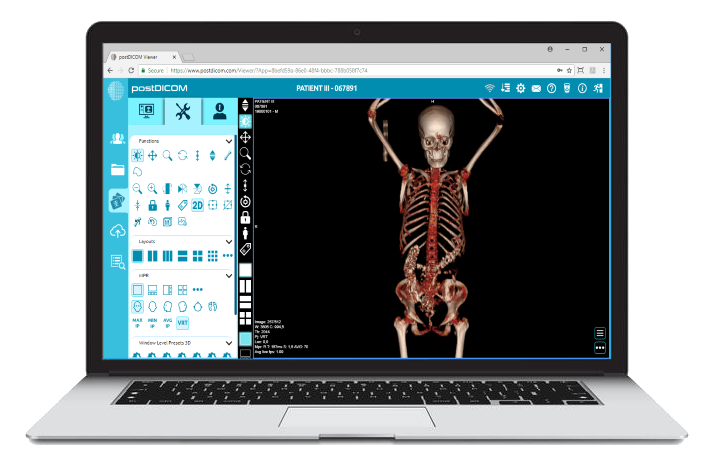
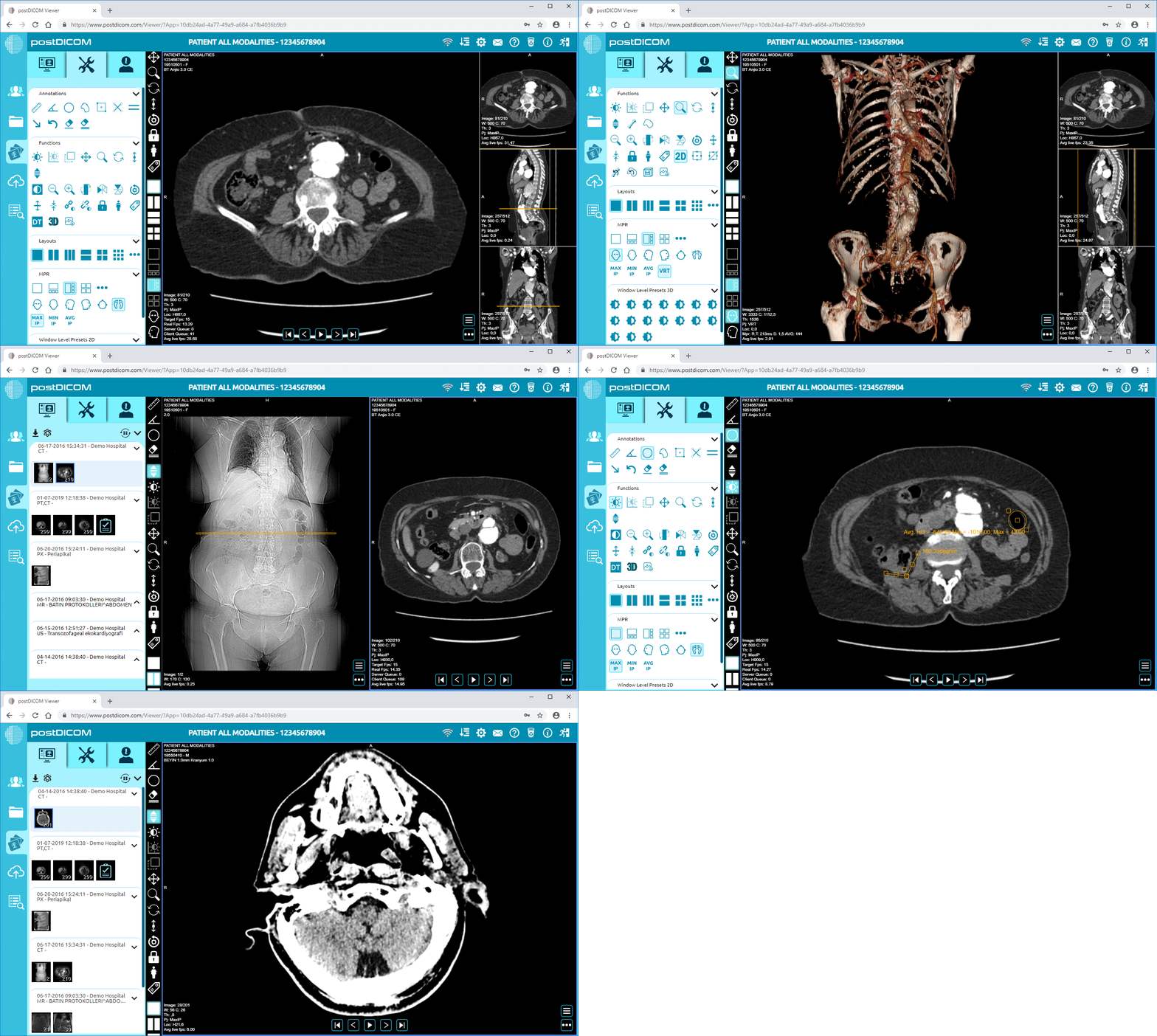
|
Cloud PACS and Online DICOM ViewerUpload DICOM images and clinical documents to PostDICOM servers. Store, view, collaborate, and share your medical imaging files. |