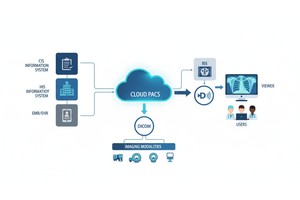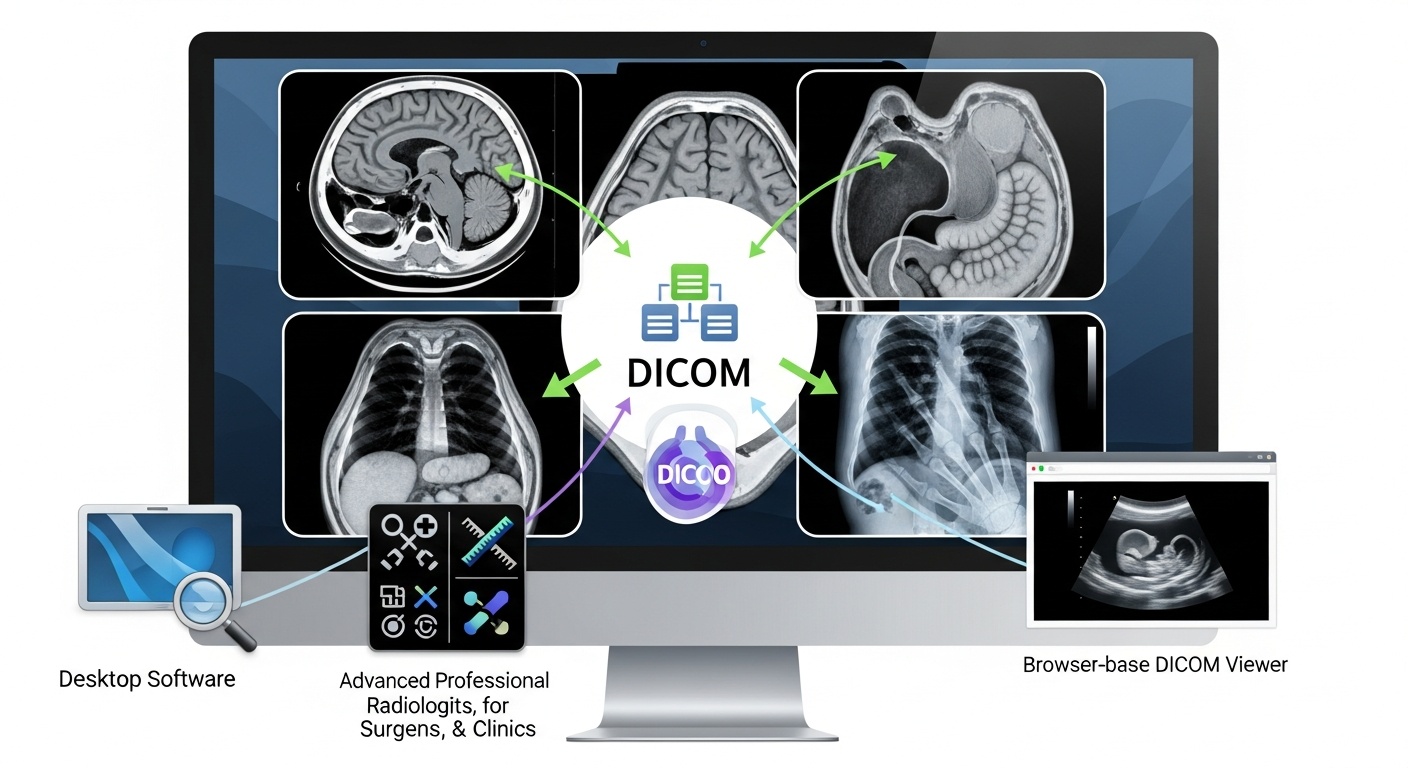
Medical images are not opened as normal pictures or documents. DICOM is a widely used format for storage of many medical imaging files, including CT scans, MRIs, X-rays, ultrasound studies, and more, and can only be viewed, measured, organized, shared, and possibly reported using specific software.
For Macs, the appropriate DICOM imaging software depends on the software's function. A simple viewer might be a requirement for a student when learning, but for a radiologist, surgeon, research lab, or clinic, it might be secure access, cloud storage, advanced viewing tools, and image sharing options.
For Mac users, there are two ways to view DICOM images: desktop software installed on macOS or a browser-based DICOM viewer. If the image viewing is limited, a simple image viewer that works on Mac computers might suffice. Cloud DICOM software is typically more flexible for secure sharing, PACS access, teaching, research, and multi-device workflows.
To avoid being restricted to only local Mac software, device storage, or a single workstation, use a browser-based DICOM viewer for Mac.
Digital Imaging and Communications in Medicine (DICOM) is a standard. The standard format for medical imaging files and related study information. A DICOM file may include the image itself, patient and study details, modality information, and technical metadata.
DICOM studies are not processed in the same manner as other common image formats, such as JPEG or PNG, on Mac computers. You require special DICOM software to:
• Open Ct, Mri, X-ray, Ultrasound, Pet, And Other Imaging Studies
• View The Image Series Slice By Slice
• Adjust Brightness And Contrast, Window Level, Zoom, And Orientation
• When The Use Of Measurement Or Annotation Tools Is Available, Use Them
• Compare Image Series And/or Previous Studies
• Export, Store, Retrieve, And Share Imaging Data
The feature level required will vary based on the user. A single study may require limited viewing, a clinical team may require PACS access and viewing, reporting, sharing, and advanced visualization.
There are two routes that most Mac users can take: install DICOM software directly on the Mac OS X operating system or use a Web-based platform.
If the user's primary office use is from one Mac and he or she desires local access to the imaging files, then a desktop DICOM viewing application may be helpful. However, desktop software might require macOS support, hardware capabilities, software updates, storage space, and licensing.
A browser-based DICOM viewer is available in Safari, Chrome, and other supported browsers. If users want to access studies on other devices or do not wish to install different software on all their Macs, this can be useful. For organizations, a cloud PACS can additionally enable storage, retrieval, viewing, reporting, and sharing of images from a single connected platform.
The ideal DICOM software for Mac shouldn't just be compatible with the device; it ought to match the user's workflow. Some significant characteristics might include:
• Upload Or Import Dicom Files From Folders, Cds, External Drives, Or Cloud Storage.
• Easy Zooming, Panning, Windowing, And Series Navigation Of Images
• Measuring And Labeling Tools
• The Safe's Secure Storage And Controlled Entry Are Essential.
• International Export Capabilities For Teaching, Case Review, Or Documentation Purposes.
• Pacs Or Cloud Pacs Support
• Use Of Advanced Tools Like Mpr, Mip, Minip, Or 3d Viewing, If Necessary
• For Educational And Research Purposes Only, The Anonymization Of Images.
• Securely Share Information With Patients, Colleagues, Or Their Referring Physicians.
For Mac users, it is also important to determine if the software is used for simple viewing, for education, for research, for clinical review, or for diagnostic interpretation. These use cases can have varying technical, privacy, and regulatory needs.
| Software approach | Best for | Main advantage | What to check |
| Basic Mac DICOM viewer | Students, patients, simple study review | Easy local viewing | Limited PACS, sharing, or advanced tools |
| Advanced desktop viewer | Specialists using one workstation | Stronger viewing and post-processing tools | Installation, licensing, updates, macOS support |
| Browser-based DICOM viewer | Users who want access without local software | Works through a supported browser | Internet access, security, intended use |
| Cloud PACS with viewer | Clinics, imaging centers, remote teams | Storage, viewing, reporting, and sharing in one workflow | Plan features, compliance needs, workflow setup |
| Teaching or research platform | Educators, residents, researchers | Case libraries, anonymization, group access | Privacy controls and case organization |
 - Created by PostDICOM.jpg)
DICOM software is needed by students and residents for studying anatomy, imaging case review, and presentation. While they don't need all the high-tech clinical instruments, they do want to have them readily available, easy to navigate, and organized study material.
A DICOM teaching library can assist teachers to prepare anonymized cases and provide students' access to imaging studies through the internet.
Advanced tools such as study comparison, measurements, MPR, MIP, reporting support, and PACS access will be necessary for the radiologists and clinicians. In this context, the software should be suitable for the clinical workflow and facilitate the secure management of imaging data.
It is important to verify if a viewer is suitable for the proposed clinical application for Mac users. The tools are intended for either educational or general review purposes, and some may be suited for diagnostic workflows depending on certification, configuration, and local requirements.
Doctors and medical professionals can access DICOM imaging software to visualize anatomy, review surgical results, or review studies prior to surgery. Helpful features: Clear image navigation, 3D tools, side-by-side comparison, secure access from other locations.
Researchers might have to review large numbers of images, compare cases, and protect patient privacy. Anonymization, organized storage, export capabilities, and controlled access are particularly significant in academic or research settings.
A problem with viewing DICOM files on a Mac is that it is device-dependent. What works great on one Mac won't necessarily work on another Mac, an operating system version, or a remote workflow. This restriction can be mitigated by storing and viewing images in a secure browser environment via cloud-based access.
Cloud-based workflow enables users to upload studies, access images through a Mac web browser, access studies from various locations, and share imaging data among authorized users. This is beneficial for clinics, off-site groups, teaching sessions, and practices looking to eliminate CDs/DVDs or workstations available only locally.
This is also useful when studies need to be shared with the patient, referring physicians, or external consultants in order to get secure medical imaging information. Multi-device DICOM viewers can be used on a variety of devices, including Mac, tablet, mobile, and browser-based, making access more flexible for teams that use multiple devices.
For Mac users, here are some items to keep in mind before selecting a DICOM viewer or PACS platform:
• Do I Have To Make Use Of Simply Dicom Files Or Advanced Clinical Tools?
• Will This Be A Mac Or Multi-device Use?
• Need Cloud Storage, Pacs Access, Or Reporting?
• Is There A Need To Share Images Securely With Others?
• For Education, Research, Clinical Review, Or Diagnosis?
• Is It Compliant With My Organization's Privacy And Compliance Standards?
The ideal DICOM imaging software for Mac is the one that meets the user's workflow and technical environment and ensures the secure handling of medical images.
The best DICOM viewer for Mac depends on the user's requirements. A student might require a simple viewer, while a clinic or radiology team could require more advanced tools, cloud PACS access, and secure sharing and reporting.
Yes. There are also some DICOM platforms that can be accessed via a web browser and enable uploading and viewing of DICOM images with a supported web browser. It can be helpful to Mac users who do not like to download individual desktop applications.
If you are simply watching, learning, or reviewing images for your own personal use, a free DICOM viewer might be sufficient. Customers who require secure sharing, PACS access, enhanced visualization, or workflow support may need a full-fledged DICOM platform.
A medical image viewer opens and displays medical images. Picture Archiving and Communication System (PACS) is a system for storing, retrieving, managing, and communicating imaging studies. Some platforms integrate cloud PACS with Web-based viewers.
Yes, if software has been developed. Some of the platforms provide the option to share a study via secure links or controlled access rather than a CD or a big bundle of manually downloaded files. Patients and users should always adhere to the privacy and patient data policies.
For Mac users, there are a number of ways to view and manage DICOM images but the answer will vary depending on the workflow. Sometimes, a simple desktop viewer is sufficient for basic image viewing; for other purposes, including clinical, educational, research, and image-sharing, more sophisticated tools are needed.
Browser-based DICOM viewing and cloud PACS workflows can help overcome the constraints of the local Mac-based DICOM applications. The right solution should simplify the visualization of studies, secure management of imaging data, sharing of images as necessary, and the utilization of the images for the intended purpose without becoming overly complicated.
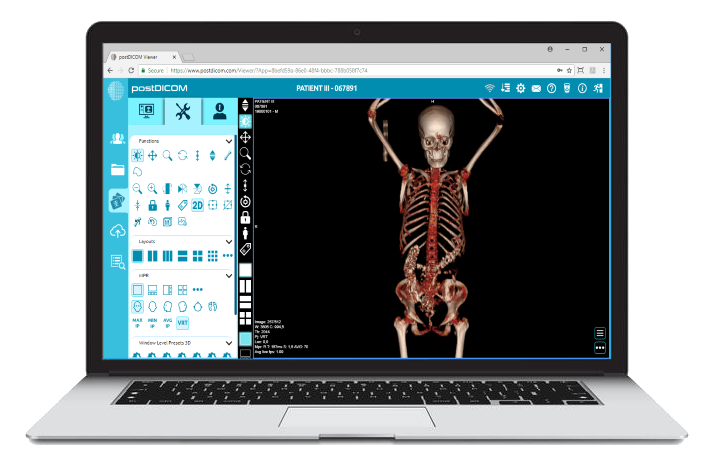
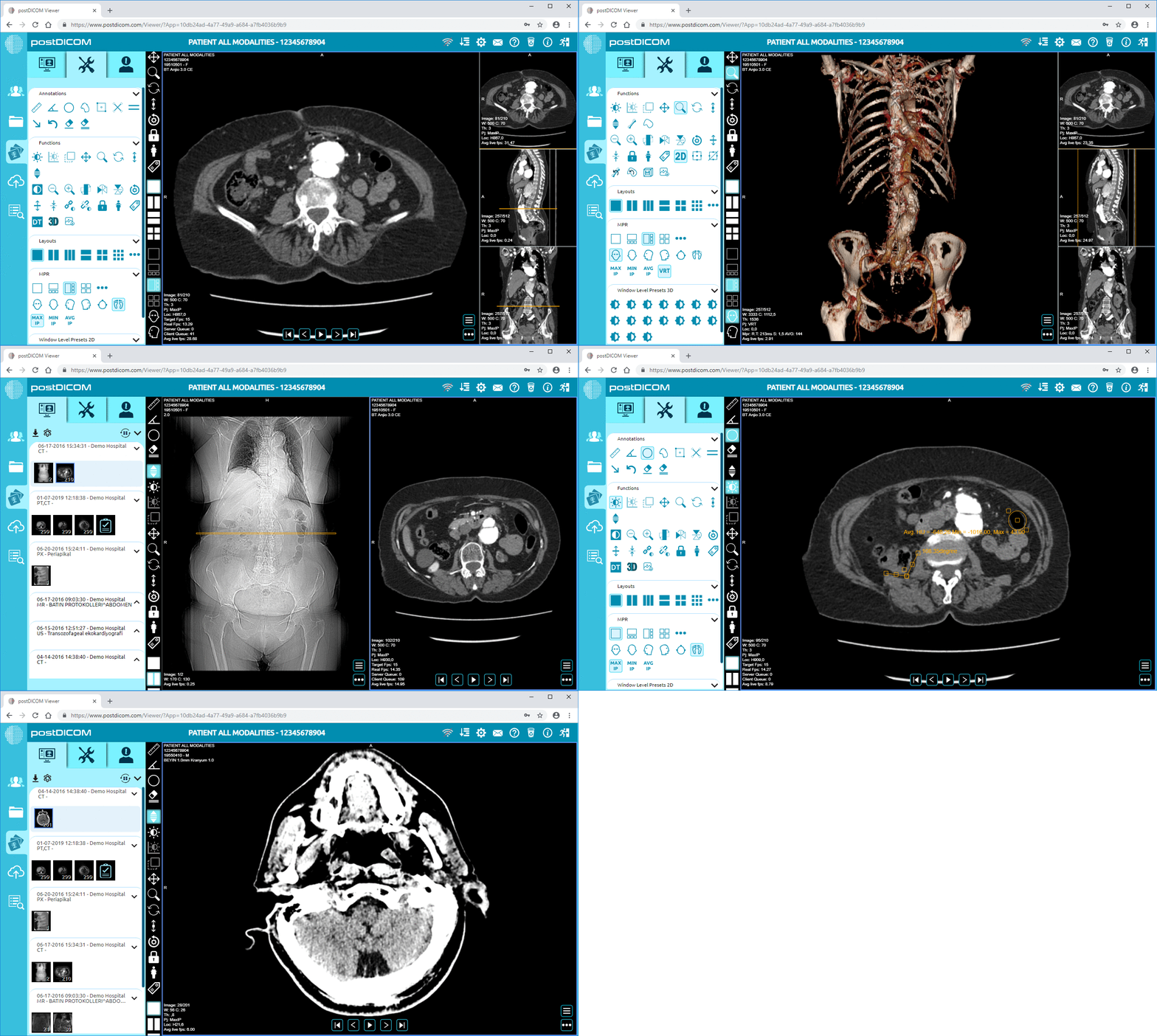
|
Cloud PACS and Online DICOM ViewerUpload DICOM images and clinical documents to PostDICOM servers. Store, view, collaborate, and share your medical imaging files. |